
User Guide
Chat
Quickly import your New API configuration into a variety of AI chat apps
- New API lets you quickly import your configuration into a variety of AI chat apps for testing and everyday use.
Chat Integration Methods
- New API supports three ways to configure a chat app:
- One-Click Import Using a Chat Preset
- One-Click Import Using an API Key
- Configure a Chat App Manually
Before You Begin
- Sign in to New API and create a key on the “API Keys” page.
- Make sure the key is enabled, has enough quota, and has not expired. Verify that the IP, group, and model restrictions allow the request you want to make.
Tip
For instructions on creating and using API keys, see the API Keys page.
One-Click Import Using a Chat Preset
- Chat — One-click import using a chat preset
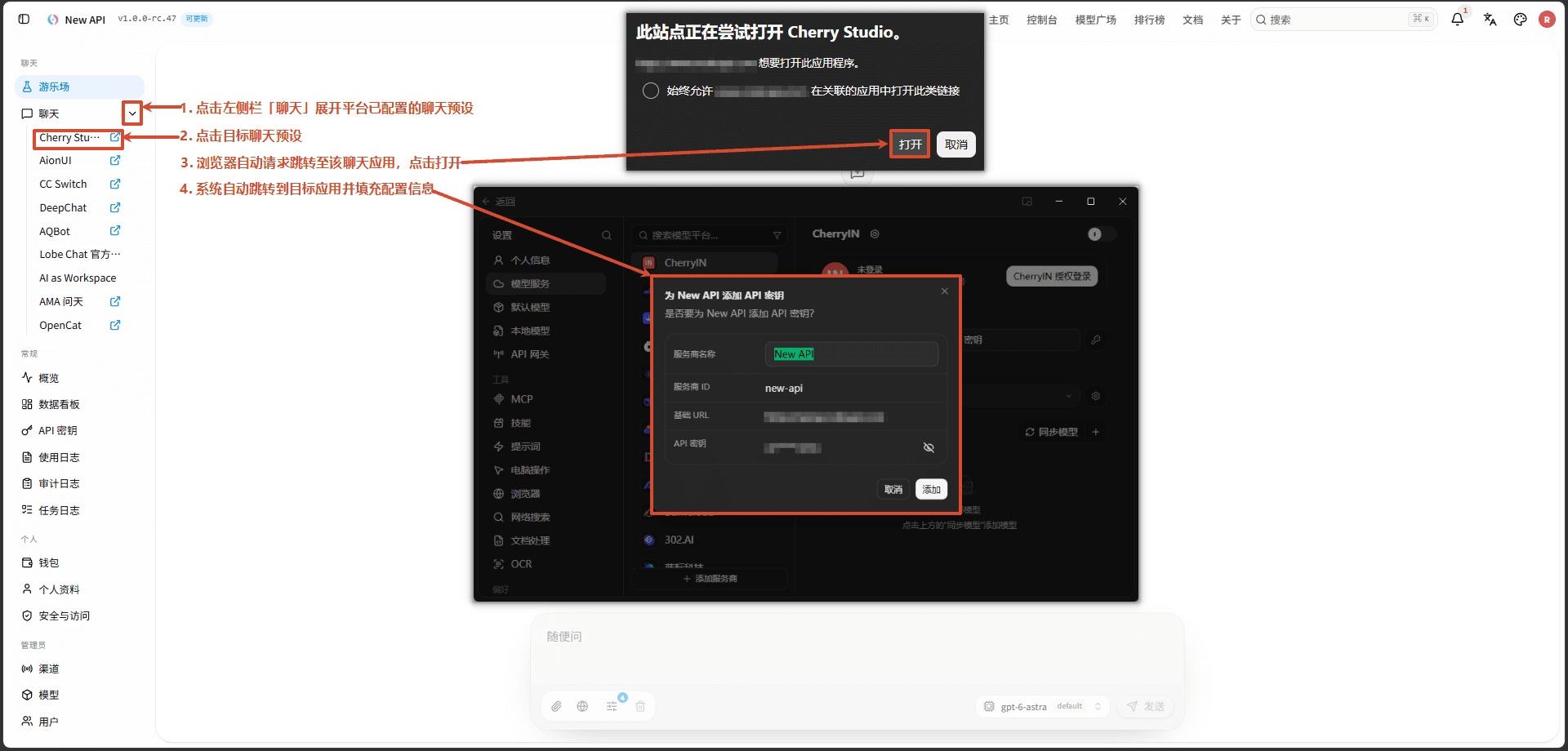
Steps:
- In the left sidebar, click the arrow to the right of “Chat” to see the chat presets configured for the site.
- Click the chat preset you want to use.
- When the browser prompts you to open the chat app, click “Open”.
- The app opens with the configuration already filled in.
Tip
- “Chat” in the sidebar automatically uses the most recently created key among your enabled keys. To use a different key, see One-Click Import Using an API Key.
- Apps without an external link icon next to their name are web apps and open within the current site. The others are desktop apps and must be installed on your computer first.
- Browser extensions such as FluentRead do not appear in the sidebar. To use one, go to “API Keys” and select ⋯ → “Chat”.
- The Root user manages chat presets under “System Settings” → “Console Content” → “Chat Presets”.
One-Click Import Using an API Key
- Chat — One-click import using an API key
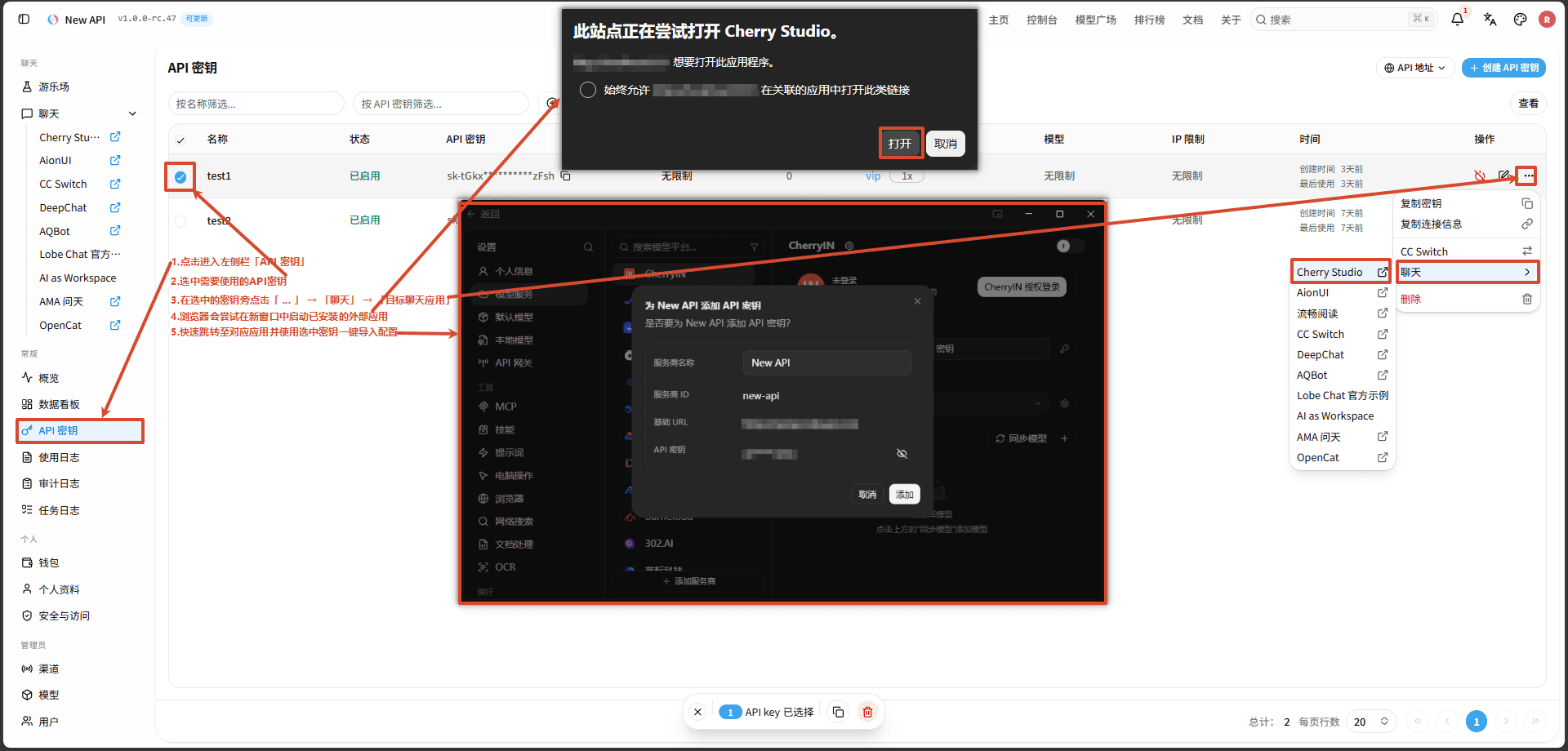
Steps:
- Click “API Keys” in the left sidebar.
- Find the API key you want to use.
- In that key’s row, click ⋯ → “Chat”, then select the chat app.
- The browser will try to launch the installed external app in a new window. When prompted, click “Open”.
- The app opens and imports the configuration using the key from that row.
Tip
- The import uses the key from the row where you click ⋯. You do not need to select the checkbox at the start of the row; the checkmark in the screenshot is for illustration only. The import does not check the key’s status. You can import a disabled or expired key, or one with no quota remaining, but requests made with it will fail.
- Web apps open in a new tab. Browser extensions such as FluentRead receive the API address and key directly and must be installed and activated first.
Configure a Chat App Manually
If an app does not support one-click import, you can configure it manually:
- Get the following configuration details from New API:
| Setting | Description | Where to find it |
|---|---|---|
| API Base URL | Base address for API requests | Open “API Address” in the upper-right corner of the “API Keys” page and append /v1 to the address, for example https://api.example.com/v1. Follow the app’s instructions for the exact URL. |
| API Key | Your API key | The “API Keys” page |
| Available Models | List of supported models | In the Model Marketplace, filter by the key’s group to see the models available to it. |
Steps:
- Open “Settings” or “Configuration” in the app.
- Find the “Custom API” or “OpenAI-Compatible API” section.
- Enter the API Base URL and API Key.
- Save the configuration to start using the app.
Tip
- Most apps that support an OpenAI-compatible API can connect to New API through a custom API address.
- If the app requires a full endpoint URL, use
https://api.example.com/v1/chat/completions. Check the app’s configuration instructions for the exact path to append. - For a list of AI apps verified to work with New API and their configuration guides, see the AI Apps page.
Frequently Asked Questions
Related Documentation
- API Keys: Create an API key, copy the API address and key, and import the configuration into a chat app using ⋯ → “Chat”.
- Playground: Test models directly in your browser.
- Model Marketplace and Leaderboard: View available models and pricing.
- Profile: Choose which pages appear in the left sidebar, including “Chat”.
- Console Content Configuration: How the Root user manages chat presets.
- AI Apps: Find AI apps verified to work with New API and their configuration guides.
How is this guide?
Last updated on
Playground
Select a group and model, adjust request parameters, and chat with the model in your browser to evaluate its responses. Find the API base URL, authentication details, SDK examples, and supported endpoints.
Overview
Check your account quota, usage, and request count. Follow the setup guide and run the example command to make your first API call. View announcements, API information, FAQs, and uptime status configured by your administrator.