
Feature Guide Overview
The New API Feature Guide is organized into three sections covering user features, administration, and system settings.
New API is a unified system for managing and distributing access to AI model APIs. It lets you call different large models through a common interface and supports formats such as OpenAI and Claude. Individuals and organizations can use it to manage channels and distribute access internally. Features include a playground, an OpenAI-compatible API, model and channel routing, usage logs, billing, subscriptions, and system operations.
- This guide is organized by role and function into three sections: the User Guide, the Administrator Guide, and the System Settings Guide.
Site Homepage
The homepage is the first page you see when you open the site. Use the top navigation or the buttons on the page to open the console, model marketplace, leaderboards, or documentation.
- Feature Guide Overview — Site Homepage
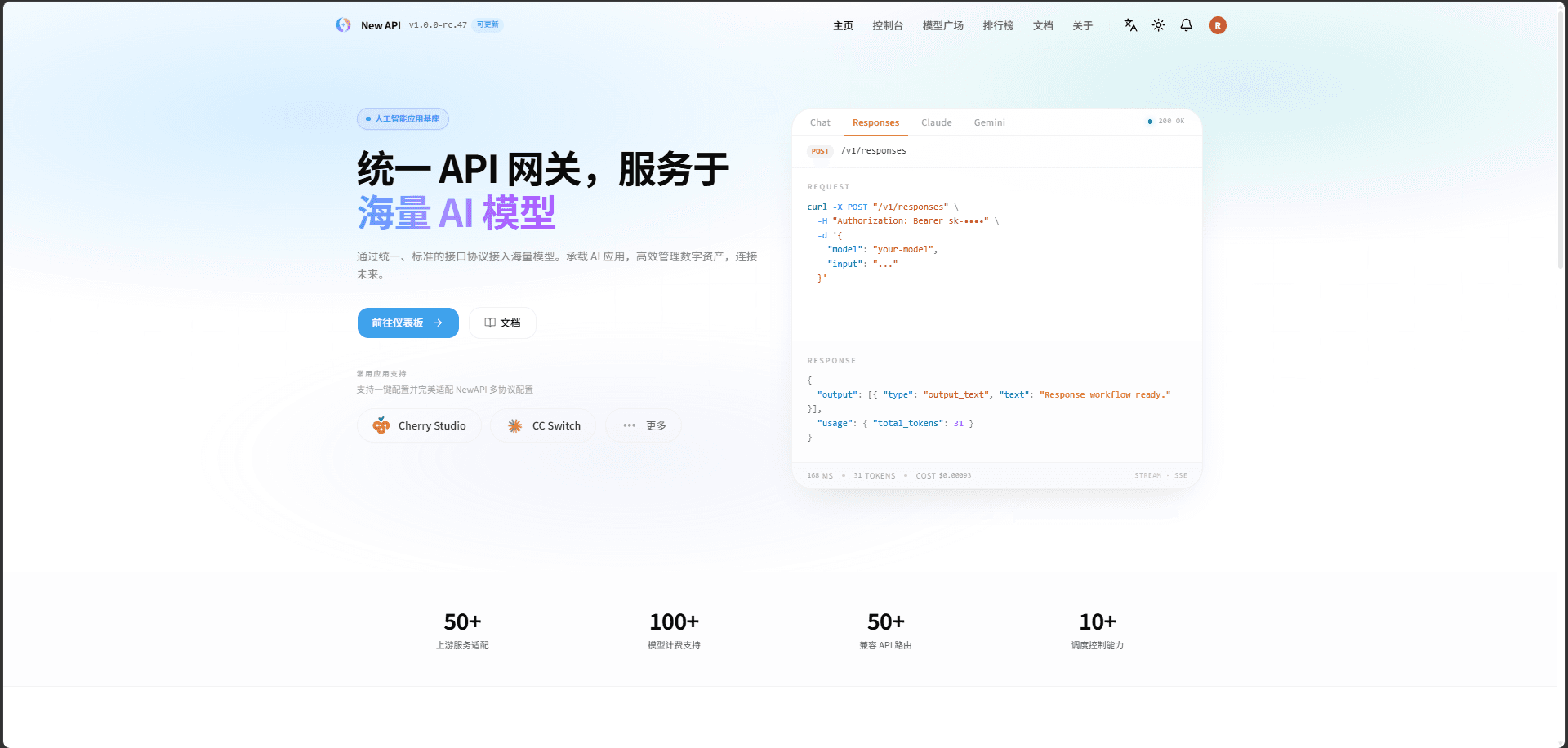
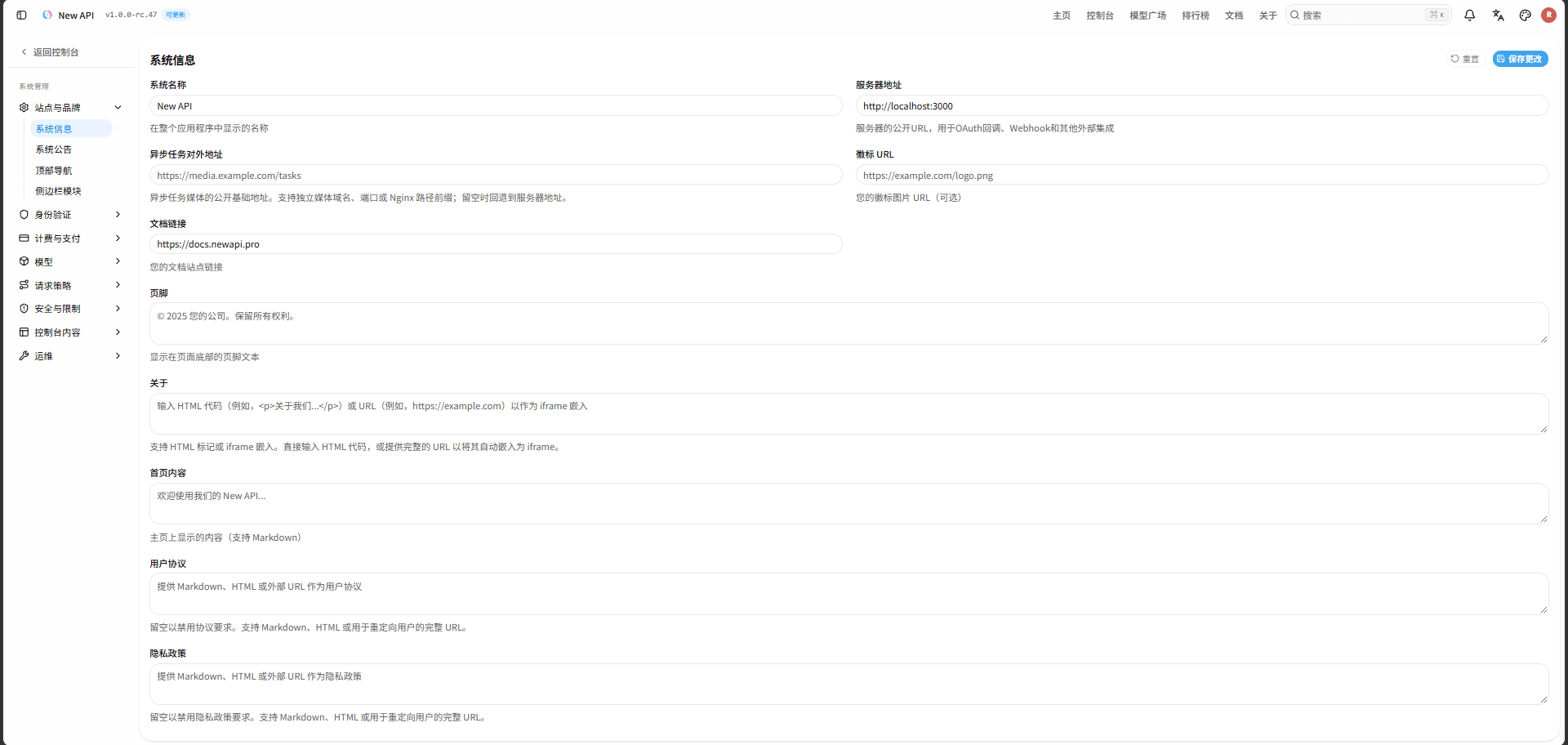
The super administrator (Root) can replace the homepage content by entering a URL, HTML, or Markdown in “Homepage Content” under “System Settings” → “Site and Branding” → “System Information”. Clear the field to restore the built-in homepage. Site and Branding Configuration →
- Feature Guide Overview — Homepage Content Settings
Account Roles
The platform controls menu access and permitted actions based on the account role. There are three roles:
-
Standard User
This is the default role after registration. Standard users can access the personal features enabled on the platform, such as the playground, chat, overview, dashboard, API keys, usage logs, audit logs, task logs, wallet, profile, and security and access settings.
The super administrator (Root) controls which entries appear in the top navigation and sidebar and whether features such as daily check-in are available. Site and Branding Configuration → -
Administrator (Admin)
In addition to standard user permissions, Admin accounts have default access to resources for managing channels, models, users, redemption codes, and subscriptions.
For resources such as channels, permissions distinguish between reading, running operations, making standard or sensitive changes, and viewing keys. The super administrator (Root) can override the defaults for an Admin account under “Administrator Permissions” in User Management. Administrator Permissions → -
Super Administrator (Root)
Root has all permissions, including access to System Information, Plugins, Request Processing, and System Settings, and can modify model prices.
System settings are divided into eight areas: Site and Branding, Authentication, Billing and Payments, Models, Request Policies, Security and Limits, Console Content, and Operations. System Settings Overview →
User Guide
This guide is for standard users, Admin, and Root. It covers common workflows, from registering, signing in, and creating API keys to calling models, reviewing logs, and managing your account. If you are new to the platform, start with the Quick Start.
Quick Start
Follow six steps to register, sign in, and make your first model call. Get familiar with the console’s top bar and sidebar.
- Understand the basic concepts
- Make your first model call
- Find your way around the console
Registration and Sign-In
Register an account, sign in with a username and password, a third-party account, or a passkey, and complete sign-in verification. If you forget your password, reset it by email.
- Sign in with a username and password
- Sign in with a third-party account or passkey
- Complete sign-in verification
- Register an account
- Reset a forgotten password
- View and sign out of active sessions
Playground
Select a group and model in your browser, adjust request parameters, and chat with the model to evaluate its responses. The playground also provides the API URL, authentication methods, SDK examples, and supported endpoints for calling models programmatically.
- Send messages and view responses
- Adjust request parameters
- Manage conversations
- API URL and authentication
- SDK examples
- Supported API endpoints
Chat
Import your New API configuration into AI chat applications for testing and everyday use.
- Import settings from a chat preset with one click
- Import settings from an API key with one click
- Configure a chat application manually
Overview
Check your account quota, usage, and request count. Follow the setup guide and use the sample command to make your first call. View announcements, API information, FAQs, and service status published by the administrator.
- Follow the setup guide
- Copy the sample command to send your first request
- Check quota and usage
- View announcements, API information, FAQs, and uptime
Dashboard
View model call counts, token usage, and quota consumption for a selected time range. See how calls are distributed across API keys, groups, and models, and set the default chart views.
- Filter data
- Set default chart views
- Analyze model calls
- View traffic distribution
- View user statistics (administrators only)
API Keys
Create, copy, and manage API keys for calling models. Set quota limits and expiration dates, restrict which models and IP addresses are allowed, and import keys into clients such as CC Switch with one click.
- Create an API key
- Copy a key and call a model
- Import a key into CC Switch or a chat application
- Edit, disable, or delete a key
Usage Logs
Review usage and charges for each model call, along with quota changes such as top-ups and refunds. Filter and export records, and open a log entry to verify its billing details.
- Filter logs and view statistics
- View log details
- Export logs
Audit Logs
Review account activity involving sign-ins, security settings, API keys, and access tokens. Check when each action occurred, where it originated, and whether it succeeded.
- Filter audit logs
- View audit details
- Event categories
Task Logs
Track the status, progress, results, and reasons for failure for asynchronous tasks such as video and music generation, as well as Midjourney image generation tasks. Learn how timeouts and refunds work.
- Filter tasks
- View task details and artifacts
- View image generation logs
- View prompts, images, and reasons for failure
- Check refunds for failed tasks
Wallet
Check your balance and usage, top up online or redeem codes for quota, purchase subscription plans, choose billing preferences, transfer referral rewards, and view your order history. The administrator configures payment methods, top-up amounts, subscription plans, and referral rewards.
- Top up online
- Redeem codes
- View order history
- Subscription plans
- Choose billing preferences
- Transfer referral rewards
Profile
View your account information and usage, configure notification methods and preferences, choose the interface language and the pages shown in the left sidebar, and check in daily to earn quota.
- Set notification and behavior preferences
- Set the interface language
- Check in daily to earn quota
- Choose which pages appear in the left sidebar
Security and Access
Change your password, link an email address and third-party accounts, enable two-step verification and passkey authentication, manage sign-in sessions and access tokens, choose whether to log IP addresses, or delete your account.
- Complete security verification
- Change or set a password
- Link an email address and third-party accounts
- Enable or disable two-step verification and regenerate backup codes
- Enable or unlink a passkey
- Manage sign-in sessions
- Create and manage access tokens and view access records
- Choose whether to log IP addresses
- Delete your account
Model Marketplace and Leaderboards
Browse the models available on the site and compare prices. View model performance and sample calls, and see how models and providers rank by usage.
- Find and filter models
- Switch views and price display options
- Understand model pricing
- View model details
- View leaderboards
Frequently Asked Questions
Look up the exact message or symptom to find causes and solutions for issues across the platform, including failed calls, quota and billing, accounts and sign-in, and interface and display problems.
- Failed calls
- Quota and billing
- Accounts and sign-in
- Interface and display
Administrator Guide
This guide covers nine pages that Admin and Root use for routine administration. Billing Expressions, System Information, Plugin Management, and Request Processing are available only to Root. Instance-wide options are covered separately in the System Settings Guide below.
Billing Expressions (Root Only)
Use billing expressions in the pricing editor to define per-token prices, pricing tier conditions, per-request prices, and request rules for a model. Verify pricing with cost estimates and simulated requests, and learn how pre-charging, settlement, and validation on save work.
Channel Management
Configure AI providers, plugins, gateways, and custom channels. Manage credentials, models, groups, routing mappings, and priorities. Use multiple keys and parameter overrides, run tests, check balances, update upstream models, and perform bulk operations.
Model Management
Manage model metadata, name matching, model marketplace listings, providers, and prefill groups. Sync model metadata from upstream providers. Root can also edit model pricing and sync prices. If the deployment service is configured, you can also manage io.net model deployments.
User Management
View and manage user accounts, account status, roles, groups, quotas, linked sign-in methods, subscriptions, passkeys, and two-factor authentication (2FA). Root can set “Administrator Permissions” for Admin accounts.
Redemption Code Management
Create, view, edit, enable, disable, and delete quota redemption codes. Copy or delete codes in bulk, or remove invalid codes. When creating codes, you can save them to a TXT or Markdown file.
Subscription Management
Create and maintain subscription plans. Configure validity periods, quota reset intervals, group upgrades and reversions, and payment methods. Enable or disable plans and reset subscription quotas in bulk.
System Information (Root Only)
View instance node status, resource metrics, synchronization status for each node, and background system tasks. Remove records for unreachable instances and clear historical system tasks.
Plugin Management (Root Only)
Manage three types of plugins: task, channel, and request processing plugins. Browse the official and community plugin marketplaces, upload local plugins, inspect plugin details and sandboxes, enable or disable plugins, and manage their channel bindings.
Request Processing (Root Only)
Inspect or modify requests before they are sent upstream. Add a request processing instance, set its scope, target models, and execution order, test it with a sample request, and add it to a channel.
Groups are a shared routing and billing dimension used by channels, users, API keys, and billing settings. They no longer have a separate entry in the main navigation. For model calls and charges, see Usage Logs. For image generation records and users’ asynchronous tasks, see Task Logs.
System Settings Guide
System Settings is the Root-only workspace for instance-level configuration. Settings are organized into eight areas by function. The overview explains the common rules for saving changes, when changes take effect, and what needs to be verified.
System Settings Overview
Learn how to access System Settings, which permissions are required, and what each of the eight settings areas covers. Review how changes are saved and applied, how multiple instances stay in sync, how sensitive settings and audit records are handled, and how to verify changes.
Site and Branding Configuration
Configure site identity, public content and legal documents, system announcements, top navigation, and sidebar modules.
Authentication Configuration
Configure registration, sign-in, OAuth, passkeys, bot protection, and custom OAuth identity providers.
Billing and Payment Configuration
Configure how quota and currency are displayed, model and group pricing, payment gateways, and check-in rewards.
Model Configuration
Configure global model behavior, provider protocol adapters, and the io.net model deployment service.
Request Policy Configuration
Configure session affinity and retries, channel health checks, and automatic channel disabling. Learn how request decisions are logged.
Security and Limit Configuration
Configure rate limits for model requests, SSRF protection, and limits on the number of API keys.
Console Content Configuration
Configure the dashboard, announcements, API URLs, FAQs, Uptime Kuma, chat presets, and image generation.
Operations Configuration
Configure the operating mode, model performance metrics, email and quota alerts, the Worker proxy, log maintenance, performance safeguards, and version checks.
How is this guide?
Last updated on