
Site and Branding Settings
Configure the site identity, public content, legal documents, system announcements, top navigation, and sidebar modules as Root.
- Only Root can access these settings. In the sidebar, go to Admin → System Settings, then select a section under Site and Branding in the left navigation.
- Configure the site name and address, public page content, legal documents, system announcements, top navigation, and sidebar modules.
- Visitors can view the system name, announcement, About page, home page content, User Agreement, and Privacy Policy without signing in.
Tip
- System Announcement on this page is a single global notice. Manage the console’s structured announcement list under Announcements in Console Content Settings.
- Top navigation and sidebar module settings control which menu items appear. Disabling Model Marketplace or Leaderboard also blocks requests for the corresponding data on the server. See Important Notes.
Site and Branding Settings Overview
Site and Branding has four sections in the left navigation. System Information opens by default.
Sections
| Section | Purpose | Tabs |
|---|---|---|
| System Information | Site identity, addresses, public page content, and legal documents. | — |
| System Announcement | The global announcement shown in the notification center. | — |
| Top Navigation | Visibility and sign-in requirements for built-in top navigation items. | — |
| Sidebar Modules | Visibility of sidebar areas and modules. | — |
Tip
- If you see an address format error, still see old content after saving, or find that the sidebar items for a particular account differ from what you expect, see FAQ.
Settings Sections
This section covers the four sections in the order they appear in the left navigation. For each section’s save button and when changes take effect, see Saving Changes and When They Take Effect.
System Information
- Site and Branding – System Information
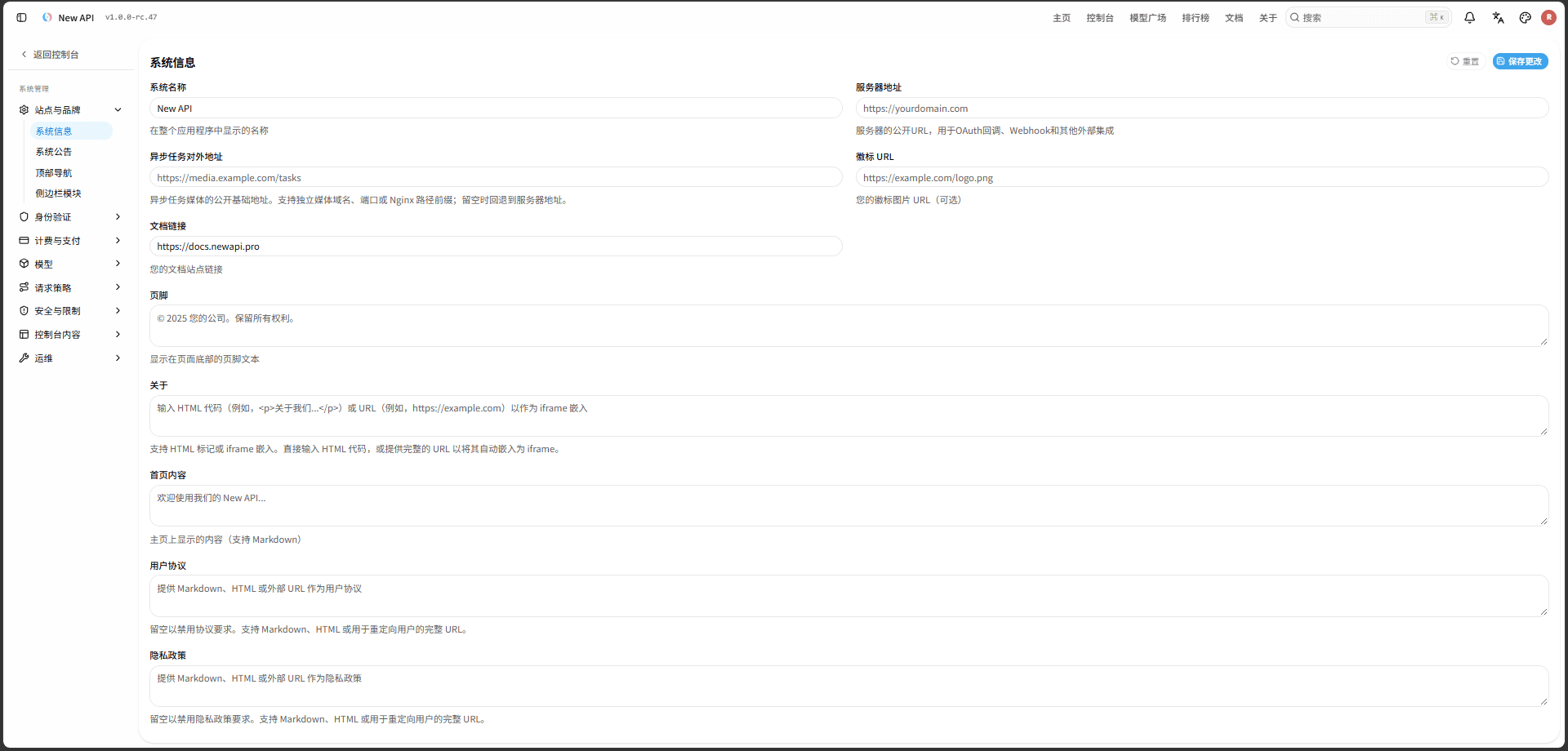
Steps
- Enter the system name, server address, and public address for asynchronous tasks.
- Add a logo URL, documentation link, footer, About page content, and home page content as needed.
- To require user consent, enter the User Agreement and Privacy Policy.
- Click Save Changes in the page header.
Caution
- Visitors can see this content without signing in. Keep API keys, client secrets, internal network addresses, internal administrator information, and other nonpublic information out of these fields.
- End users must be able to reach the Public Address for Asynchronous Tasks from their browsers over the public internet. Validation only checks the URL format.
- An incorrect address can make task output URLs unreachable, and inconsistent secrets across nodes can cause validation to fail. See Important Notes.
Legal document rules
- When the User Agreement or Privacy Policy field is populated, the corresponding link appears on the sign-in and registration pages and in the footer.
- On authentication pages, users must select the checkbox to agree to the configured documents.
- Clearing a field removes its link and disables the corresponding consent requirement.
Tip
Use this feature to publish the current document content or an external link. Handle document versioning, signature records, and historical retention separately. If you need auditable agreement versions and a way to request consent again, set up those processes outside New API.
Name, logo, and address settings
| Setting | Description | Requirements and restrictions | Default |
|---|---|---|---|
| System Name | The name used throughout the application, including in the site title, browser tab, authentication pages, and branding components. | Required. If left blank, the interface displays “System name is required.” | New API |
| Server Address | The server’s public URL, used for OAuth callbacks, webhooks, and other external integrations. | Optional. The trailing / is removed before submission. | Empty |
| Public Address for Asynchronous Tasks | The base URL for public access to asynchronous task outputs such as videos and images. Generated URLs include access credentials. Supports a separate media domain, port, or Nginx path prefix. | Optional. If left blank, it falls back to the Server Address. Use an absolute URL beginning with http:// or https://. The URL must be free of query parameters (?), fragments (#), user information (@), control characters, backslashes, and leading or trailing whitespace. The trailing / is removed before submission.The validation message reads “Enter an absolute HTTP(S) URL without credentials, query parameters, or fragments.” | Empty |
| Logo URL | The URL of the site’s logo image. | Optional. If provided, it must be a valid URL. The interface displays “Your logo image URL (optional).” | Empty |
| Documentation Link | The destination for the Docs item in the top navigation and the Docs button on the home page. | Optional. | https://docs.newapi.pro |
Page content and legal document settings
| Setting | Description | Requirements and restrictions | Default |
|---|---|---|---|
| Footer | Footer text displayed at the bottom of the page. | Optional. Rendered as HTML. See Important Notes. | Empty |
| About | Content for the About page. | Optional. Accepts HTML or Markdown. If you enter a full URL, the page embeds it in an iframe. | Empty |
| Home Page Content | Content displayed on the home page. | Optional. Accepts an HTTP(S) URL, HTML, or Markdown. Clearing the field restores the built-in home page. | Empty |
| User Agreement | The agreement users must accept when signing in or registering. | Optional. Accepts Markdown, HTML, or a full URL that redirects users to the agreement. Leave blank to remove the link and disable the consent requirement. | Empty |
| Privacy Policy | The privacy policy users must accept when signing in or registering. | Optional. Accepts Markdown, HTML, or a full URL that redirects users to the policy. Leave blank to remove the link and disable the consent requirement. | Empty |
System Announcement
- Site and Branding – System Announcement
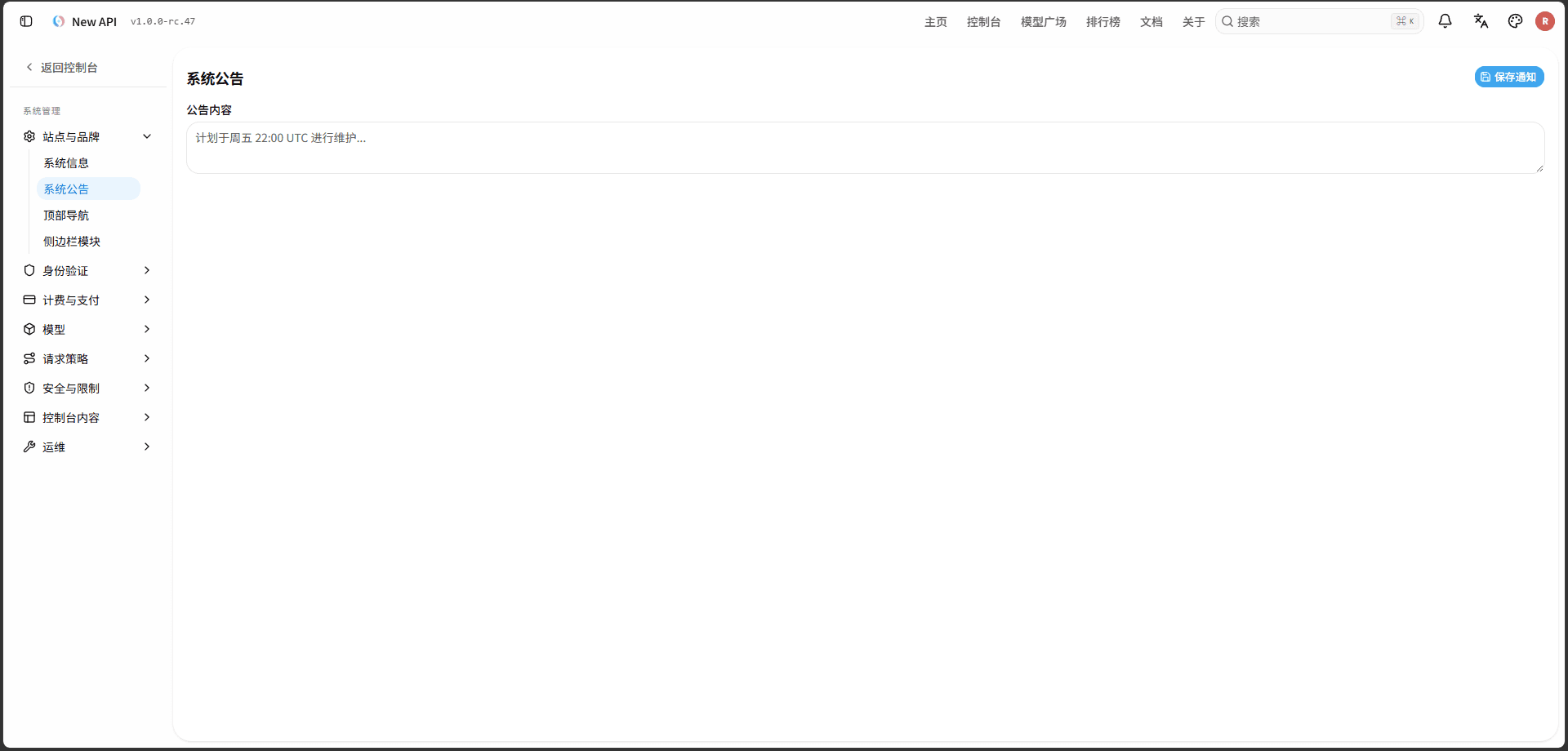
The system announcement appears in the Notifications tab of the notification center whenever the content field is populated. There is no separate toggle.
Steps
- Enter the announcement in Announcement Content.
- Click Save Notification in the page header.
- To take down the announcement, clear Announcement Content and save.
Tip
System Announcement and Console Content › Announcements serve separate purposes. Use System Announcement for a single global notice and Console Content › Announcements for a structured list whose entries can be enabled or disabled.
Top Navigation
- Site and Branding – Top Navigation
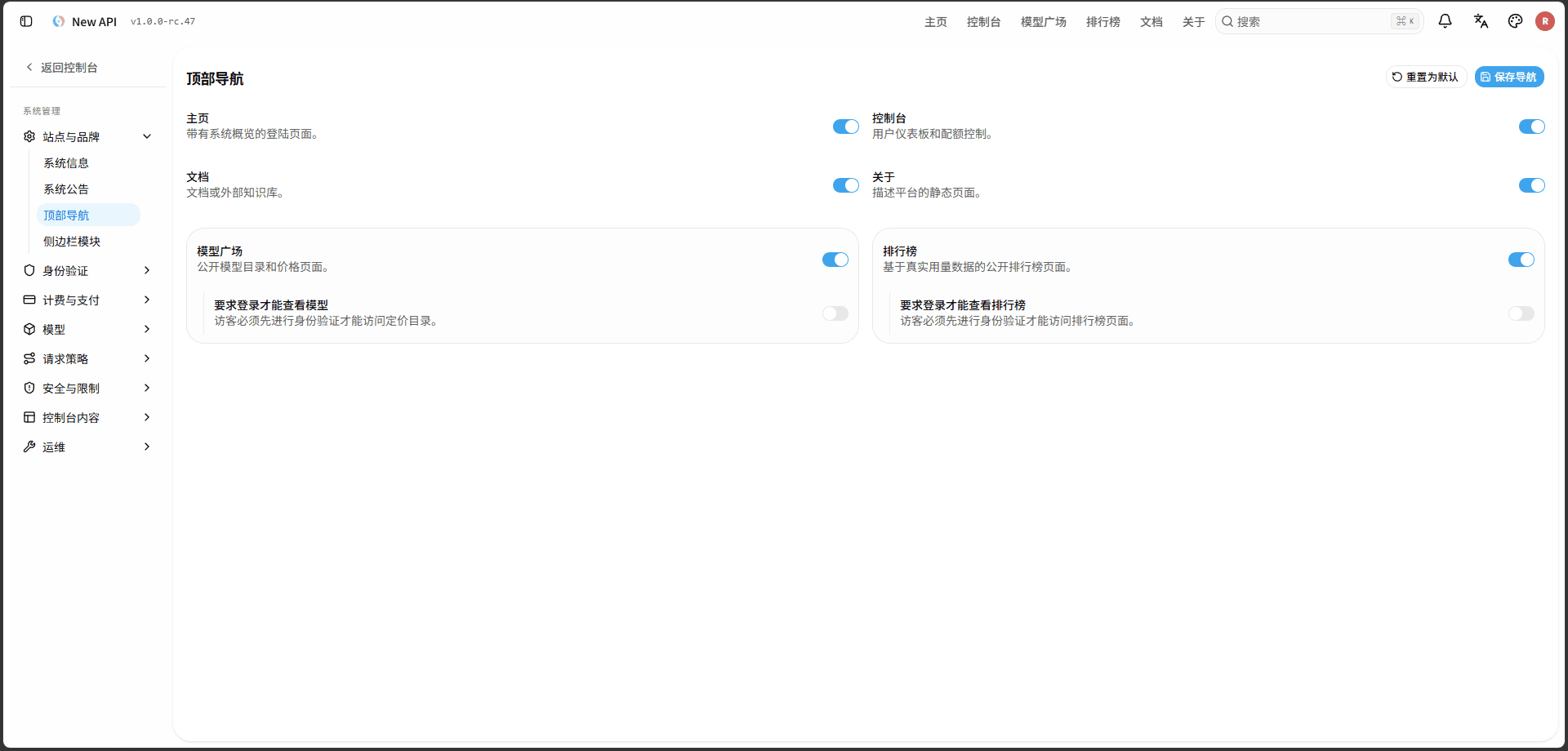
Steps
- Turn each item’s visibility toggle on or off.
- To require visitors to sign in before accessing Model Marketplace or Leaderboard, turn on Require Sign-in to View Models or Require Sign-in to View the Leaderboard, respectively.
- Click Save Navigation in the page header.
Tip
- You can change a subordinate toggle only when its parent item is enabled.
- The Docs item opens the Documentation Link configured in System Information.
- Reset to Defaults in the page header restores the form so that all items are visible and none require sign-in. Click Save Navigation to apply the defaults.
Settings
| Setting | Description | Requirements and restrictions | Default |
|---|---|---|---|
| Home | Landing page with a system overview. | Toggle. | On |
| Console | User dashboard and quota controls. | Toggle. | On |
| Docs | Documentation or an external knowledge base. | Toggle. | On |
| About | Static page describing the platform. | Toggle. | On |
| Model Marketplace | Public model catalog and pricing page. | Toggle. When disabled, the server blocks requests for model pricing data from anyone other than Root. | On |
| Require Sign-in to View Models | Visitors must sign in before accessing the pricing catalog. | Toggle. Available only when Model Marketplace is enabled. Visitors who click the item while signed out are redirected to the sign-in page. | Off |
| Leaderboard | Public leaderboard based on actual usage data. | Toggle. When disabled, the server blocks requests for leaderboard data. | On |
| Require Sign-in to View the Leaderboard | Visitors must sign in before accessing the leaderboard page. | Toggle. Available only when Leaderboard is enabled. Visitors who click the item while signed out are redirected to the sign-in page. | Off |
Sidebar Modules
- Site and Branding – Sidebar Modules
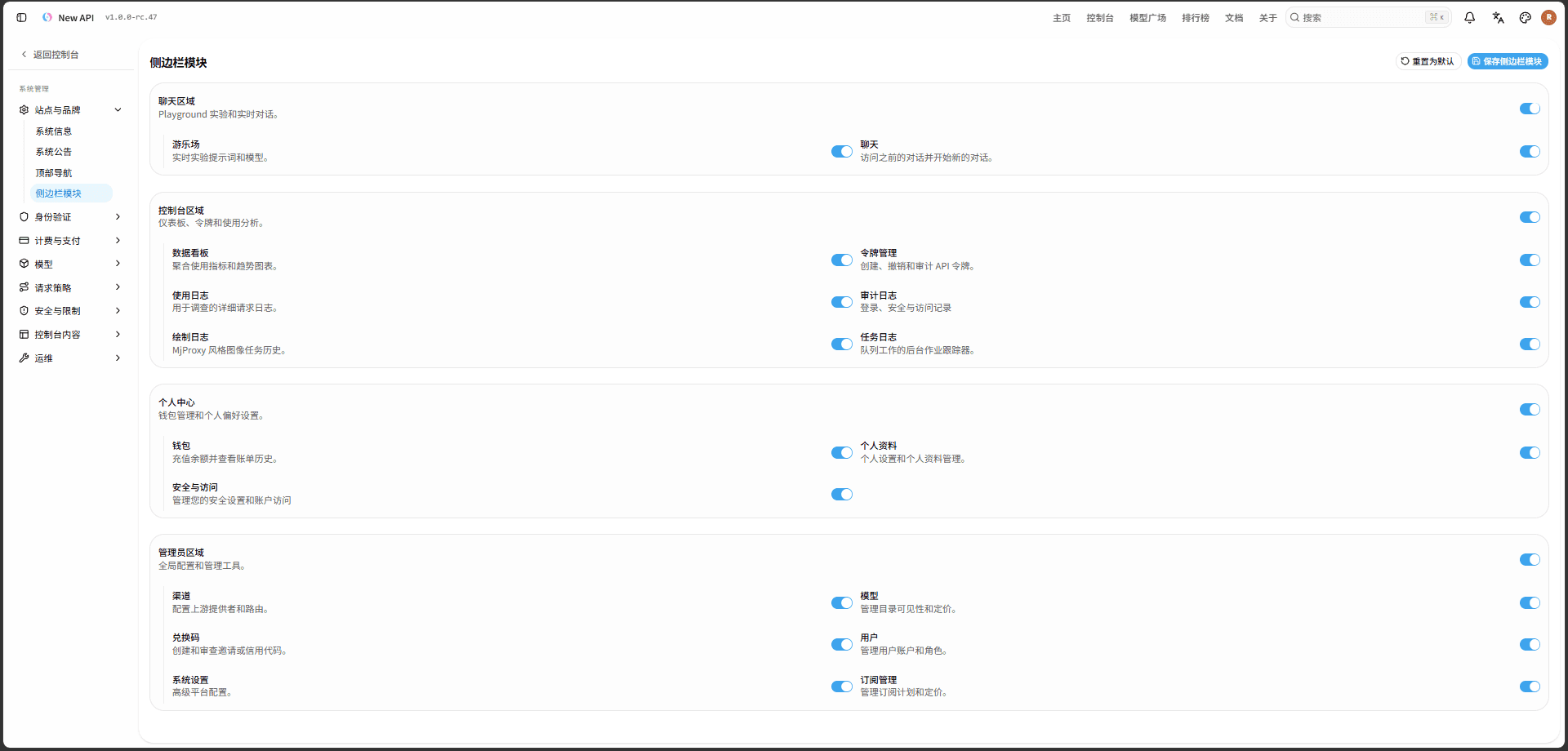
Control which built-in sidebar items appear by toggling areas and individual modules.
Steps
- Turn each area toggle on or off.
- Within each enabled area, turn individual modules on or off.
- Click Save Sidebar Modules in the page header.
Tip
- Turning off an entire area disables all module toggles in that area. When you turn the area back on, each module’s own toggle determines whether it appears.
- Reset to Defaults in the page header enables all options in the form. Click Save Sidebar Modules to apply the defaults.
- These settings determine which modules are available to display. Users with permission to customize their sidebar can further hide available modules in Chat, Console, and Personal Center. Admin modules follow the site-wide settings.
- Personal sidebar settings do not apply to Root.
Modules
| Area | Description | Modules |
|---|---|---|
| Chat | Playground experiments and real-time conversations. | Playground, Chat |
| Console | Dashboard, Tokens, and usage analytics. | Dashboard, Token Management, Usage Logs, Audit Logs, Drawing Logs, Task Logs |
| Personal Center | Wallet management and personal preferences. | Wallet, Profile, Security and Access |
| Admin | Global settings and administration tools. | Channels, Models, Redemption Codes, Users, System Settings, Subscription Management |
Saving Changes and When They Take Effect
For save behavior, see System Settings Overview. For activation and synchronization rules, see Scope and Multi-Instance Synchronization. For when browsers display new values, see Frontend Display and Caching.
Unless otherwise noted, the node that handles the save request uses the new values immediately. Other nodes pick up the changes through system settings synchronization in about 3 seconds, or within one synchronization interval at most. The SYNC_FREQUENCY environment variable sets the interval in seconds and defaults to 60. Restart New API after changing it. The tables below show when each setting reads the new value.
Branding, addresses, and page content
| Setting | How to save | When changes take effect |
|---|---|---|
| System Name, Logo URL, Footer, Documentation Link | Click Save Changes in the page header to submit only modified fields. Reset restores the form. | New values appear after a page refresh, including in the browser used to save the changes. |
| Server Address | Click Save Changes in the page header. The trailing / is removed before submission. | The next request that uses the address picks up the new value. The browser used to save the changes updates automatically. |
| Public Address for Asynchronous Tasks | Click Save Changes in the page header. The trailing / is removed before submission. The server validates the format if the field is populated. | Subsequent task queries return output URLs generated from the new address. Previously issued URLs keep their original address. |
| About | Click Save Changes in the page header. | The new content loads the next time the About page opens. |
| Home Page Content | Click Save Changes in the page header. | The next time the home page opens, it first shows the browser’s cached content, then automatically updates to the latest content. To restore the built-in home page, clear the field. |
| User Agreement, Privacy Policy | Click Save Changes in the page header. | Document content loads when opened and remains cached for about 10 minutes if the page is not refreshed. Links on the sign-in and registration pages and in the footer update after a page refresh. |
Announcement, navigation, and sidebar
| Setting | How to save | When changes take effect |
|---|---|---|
| System Announcement | Save Notification saves the entire announcement. | The browser caches the system announcement shown in the notification center. Refresh the page to load the new content. Any content change marks the announcement as unread again. |
| Top Navigation | Save Navigation saves the entire configuration. Reset to Defaults only resets the form. | The browser used to save the changes updates automatically. Other browsers update after a page refresh. The server enforces the visibility and sign-in settings for Model Marketplace and Leaderboard starting with the next request. |
| Sidebar Modules | Save Sidebar Modules saves the entire configuration. Reset to Defaults only resets the form. | The browser used to save the changes updates automatically. Other browsers update after a page refresh. These settings affect sidebar visibility only. |
Additional details
- Saving individual fields. System Information submits only modified fields. Each successful field update displays “Settings updated successfully.” If you made no changes, the interface displays “No changes to save.”
- Saving entire configurations. System Announcement, Top Navigation, and Sidebar Modules each save their entire configuration. If you made no changes, the interface skips submission and displays no message.
- Unsaved changes. If you leave System Information with unsaved changes, the Unsaved Changes dialog lets you choose Leave or Stay.
Important Notes
- The footer renders raw HTML. Keep untrusted scripts, event handler attributes, and third-party injection code out of the footer.
- HTML embedded in the About page, home page, or legal documents. DOMPurify removes tags such as
<script>and prevents scripts from running. Isolation and sandboxing also restrict styles and iframe behavior. Avoid relying on arbitrary scripts. - Embedding external URLs. A remote site may fail to display because of
X-Frame-Options, CSP, mixed content, or certificate issues. New API respects these browser and remote-site restrictions. - Menu visibility and access. Hiding Home, Console, Docs, About, or a sidebar module still allows direct access by URL. Disabling Model Marketplace blocks requests for model pricing data except for Root. Disabling Leaderboard blocks requests for leaderboard data. Enabling Require Sign-in to View Models or Require Sign-in to View the Leaderboard blocks unauthenticated access to the corresponding data.
- Public Address for Asynchronous Tasks. This address is used only for task output URLs and must be reachable over the public internet. In a multi-instance deployment, set the same
CRYPTO_SECRETon every node. IfCRYPTO_SECRETis unset, New API usesSESSION_SECRET. If both are unset, New API generates a random secret at each startup, so previously issued output URLs fail validation after a restart.
FAQ
Related Documentation
- How system settings take effect, how instances synchronize, and how to handle sensitive settings and verify changes. System Settings Overview
- How OAuth callback URLs, the primary passkey domain, and sites that allow passkeys depend on the server address. Authentication Settings
- How to configure Quota units and pricing for models and Groups. Billing and Payment Settings
- How to configure announcements, the data dashboard, API addresses, and frequently asked questions. Console Content Settings
- User roles and the Admin permissions matrix. User Management
How is this guide?
Last updated on
System Settings Overview
Learn how to access System Settings as Root, what the eight settings areas and their sections cover, how settings are saved and applied across instances, and how to handle sensitive settings and verify changes.
Authentication Configuration
Root configuration for password sign-in and registration, email verification and domain restrictions, third-party OAuth, passkeys, Turnstile bot protection, custom OAuth, and password encryption in transit.