
Subscription Management
Create and maintain subscription plans, configure validity periods, quota reset cycles, group benefits, and payment methods, and manage whether plans are published.
- Only Admin and Root accounts can access this page. In the sidebar, go to “Admin” → “Subscriptions”.
- Create and maintain subscription plans, enable or disable them, and reset the quota for all active subscriptions under a plan at once.
- To manage an individual user’s subscriptions, open “Manage Subscriptions” in User Management.
Tip
- A subscription plan bundles a price, validity period, available quota, quota reset cycle, user group, and payment methods into a single offering that users can purchase.
- The page is read-only until Root goes to “System Settings” → “Billing & Payments” → “Payment Gateways” and accepts the payment compliance terms.
- Until then, the page displays “Creating and modifying subscription plans is locked until an administrator accepts the compliance terms in the payment gateway settings.” The “New Plan” button and the row actions to edit, reset subscription quota, enable, and disable are all unavailable.
- For individual subscriptions, see User Management. For payment gateways, groups, and quota units, see Billing & Payment Configuration.
Subscription Management Overview
- Subscription Management – Plan List
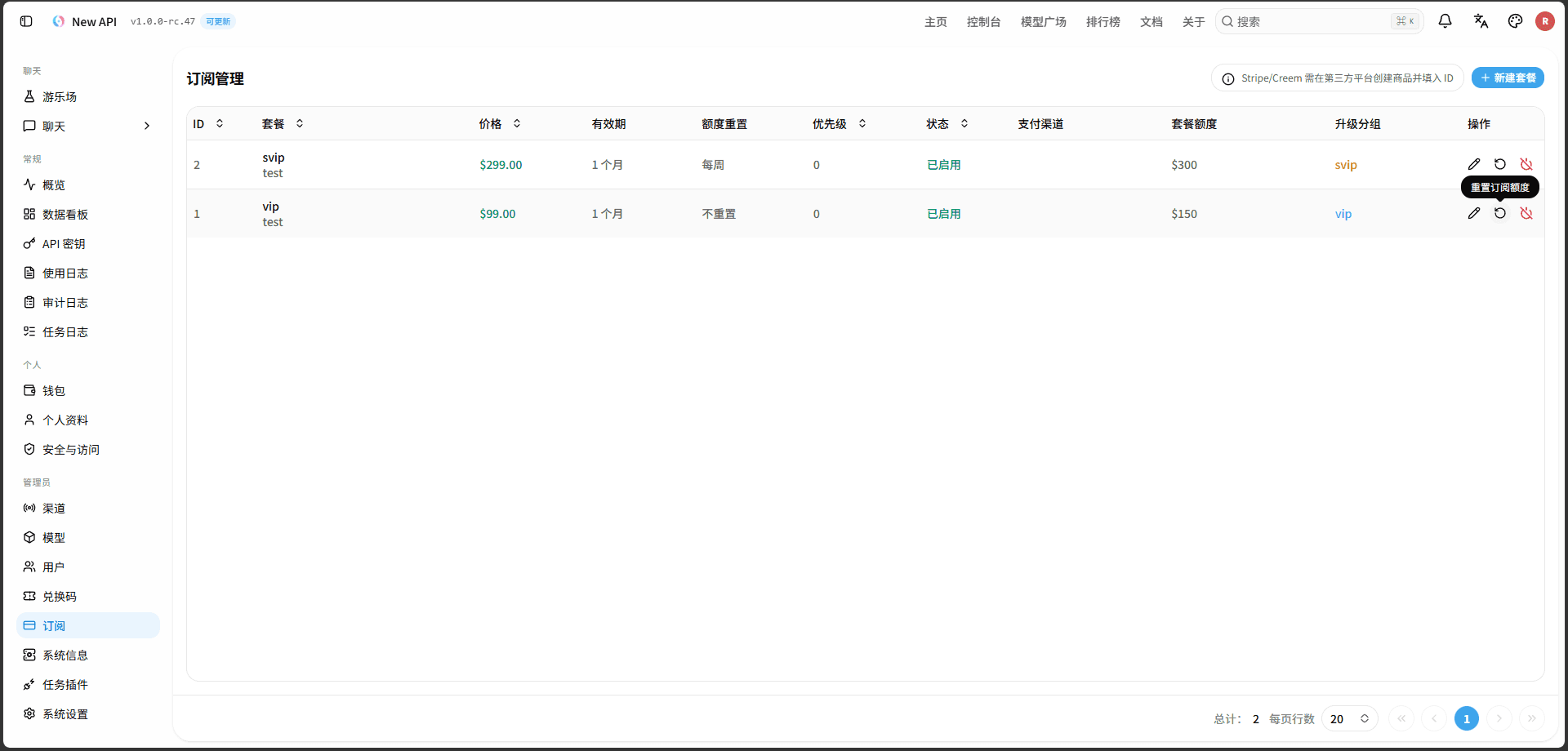
The plan list shows both enabled and disabled plans.
- Create a Subscription Plan
- Edit a Subscription Plan
- Enable and Disable Plans
- Reset Subscription Quota
Tip
If you get an invalid parameter error when saving a plan, users cannot see a plan, or a user’s group fails to revert after a subscription expires, see the FAQ.
Field reference
| Field | Definition | Requirements and Limits | Notes |
|---|---|---|---|
| ID | The unique identifier for the plan. | Generated by the system. | Use it to identify the associated plan when troubleshooting orders, subscriptions, or API issues. |
| Plan | The plan title and subtitle. | Set in the “Basic Information” section of the plan drawer. | The subtitle appears below the title in smaller text. |
| Price | The amount a user pays to purchase the plan. | Set in “Plan Price”. | Always displayed with a $ symbol and two decimal places, regardless of the currency display settings. |
| Validity Period | How long each new subscription remains valid, measured from its creation time. | Set in “Validity Period Settings”. | Custom durations entered in seconds are displayed in days, hours, or seconds. |
| Quota Reset | How often the quota resets. | Set in “Quota Reset”. | “No Reset”, “Daily”, “Weekly”, or “Monthly”. Custom cycles are displayed in days, hours, minutes, or seconds. |
| Priority | The order in which plans are displayed. | Corresponds to “Sort Order” in the form. | Applies only to plan display order and has no effect on model or channel routing. |
| Status | Whether the plan is visible to users. | Controlled by the “Enabled” toggle or the row actions to enable or disable a plan. | “Enabled” or “Disabled”. See Plan Status. |
| Payment Channels | Payment channels with a configured product ID. | Set in “Third-Party Payment Configuration”. | Displayed as badges for Stripe, Creem, or Waffo Pancake. The field is blank if no IDs are configured. |
| Plan Quota | The total quota included in each subscription. | Set in “Quota”. | 0 is displayed as “Unlimited”. |
| Upgrade Group | The user group assigned when a subscription is created. | Set in “Upgrade Group”. | Displays “No Upgrade” if no group is set. |
Common Operations
This section covers creating, editing, enabling, and disabling plans, followed by resetting the quota for subscriptions under a plan.
Create a Subscription Plan
- Subscription Management – Create Plan
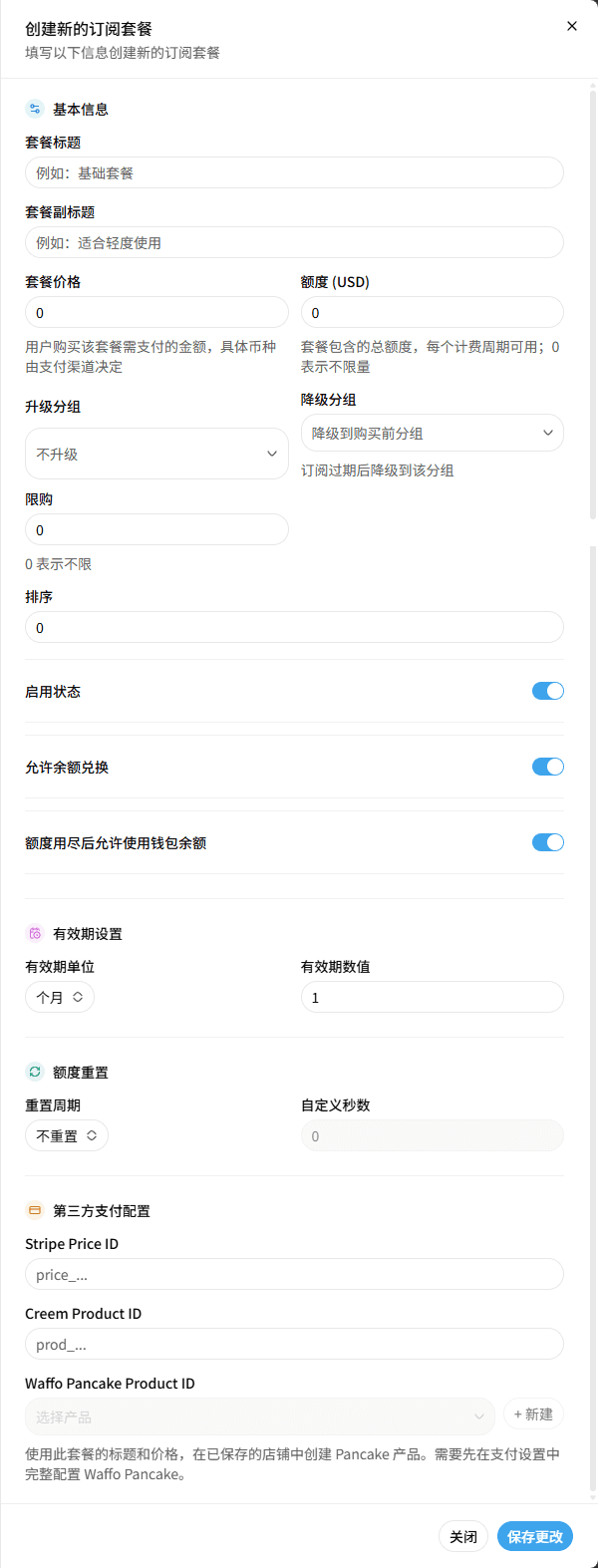
Prerequisites
- Root must accept the payment compliance terms under “System Settings” → “Billing & Payments” → “Payment Gateways”.
- Determine the plan’s intended users, price, validity period, total quota, and quota reset method.
- If the plan changes a user’s group, first create and verify the upgrade and downgrade groups in Group Pricing.
- If you need third-party payments, configure the corresponding gateway’s global credentials, callback URL, and webhook first.
- Decide whether users can purchase the plan with their wallet balance and whether they can continue using that balance after they exhaust the subscription quota.
Caution
Saving a plan does not make every payment method available. Third-party payments also depend on the plan’s product ID, global gateway configuration, callback reachability, and the product’s status on the payment platform.
Steps
- Click “New Plan” on the Subscription Management page.
- In “Basic Information”, enter the plan title, price, quota, groups, purchase limit, sort order, and any other applicable fields.
- Choose whether to enable the plan immediately, allow purchases with wallet balance, and allow users to use wallet balance after exhausting the quota.
- In “Validity Period Settings”, select the unit and enter the value.
- In “Quota Reset”, select the reset cycle. If you select a custom cycle, enter the number of seconds.
- To accept payments through Stripe, Creem, or Waffo Pancake, enter or select the corresponding product identifier.
- Click “Save Changes”.
Tip
The “Enabled” toggle determines whether the plan is visible to users as soon as you save it. The toggle is on by default for new plans.
Configuration reference
The drawer has four sections in the following order. “Basic Information”, “Validity Period Settings”, “Quota Reset”, and “Third-Party Payment Configuration”. The tables follow the drawer’s order.
Basic Information (name, price, and groups)
| Setting | Section | Definition | Requirements and Limits | Default |
|---|---|---|---|---|
| Plan Title | Basic Information | The name shown in the admin list and on plan cards visible to users. | Required. A title containing only whitespace is rejected. | Blank |
| Plan Subtitle | Basic Information | Describes who the plan is for or summarizes its benefits. | Optional. Has no effect on billing. | Blank |
| Plan Price | Basic Information | The amount users pay for the plan. The payment channel determines the payment currency. | 0–9999. Plan prices are always stored in US dollars. The gateway configuration still governs the payment currency and settlement behavior. | 0 |
| Quota | Basic Information | The total quota included in the plan and available in each billing cycle. 0 means unlimited. | Must be non-negative. The label and unit follow the instance’s currency or token display settings. The quota is saved in the entitlement snapshot when a user subscription is created. | 0 |
| Upgrade Group | Basic Information | The group the user moves to when the subscription is created. | On creation, the system moves the user to the target group and records their pre-purchase group. If the target group does not exist, the plan cannot be saved. Options come from the current group configuration. | No Upgrade |
| Downgrade Group | Basic Information | The group the user moves to after the subscription expires. | When the subscription expires, is voided, or is deleted, the system gives priority to the specified group. If left blank, it attempts to restore the pre-purchase group when the applicable conditions are met. Options come from the current group configuration. | Revert to the pre-purchase group |
Tip
The “Quota” field’s label and input increment follow the instance’s currency or token display settings. When you save the plan, the system converts the value to internal quota units. Enter the value using the unit displayed on your instance.
Basic Information (purchase limit, sort order, and toggles)
| Setting | Section | Definition | Requirements and Limits | Default |
|---|---|---|---|---|
| Purchase Limit | Basic Information | The maximum number of subscription records a single user can have under this plan. | Must be a non-negative integer. The help text reads “0 means unlimited”. The count includes all of the user’s remaining subscription records for this plan, including expired and voided subscriptions and subscriptions added by an administrator. To free up a slot, delete a record. | 0 |
| Sort Order | Basic Information | The order in which plans are displayed. | Must be an integer. Higher values appear first in both the admin list and the user interface. Shown as “Priority” in the list. | 0 |
| Enabled | Basic Information | Whether the plan is visible to users and available through the standard purchase flow. | Existing subscriptions remain active when the plan is disabled. | On |
| Allow Wallet Balance Purchases | Basic Information | Whether users can buy the plan with their wallet balance. | When enabled, users with sufficient wallet balance can use it to buy the plan. When disabled, “Pay with Balance” is unavailable in the purchase dialog, which displays “This plan cannot be purchased with wallet balance”. | On |
| Allow Wallet Balance After Quota Is Exhausted | Basic Information | Whether users can continue using their wallet balance when their subscription quota is insufficient. | Saved in the entitlement snapshot when the subscription is created. Whether billing falls back to the wallet also depends on the user’s billing preference. | On |
Validity period and quota reset
| Setting | Section | Definition | Requirements and Limits | Default |
|---|---|---|---|---|
| Validity Period Unit | Validity Period Settings | Determines how the subscription end time is calculated from its creation time. | Years, months, days, hours, or Custom (seconds). | Months |
| Validity Period Value | Validity Period Settings | The length of the validity period. Years and months follow the calendar, days are added in 24-hour increments, and hours are added as a fixed number of hours. | Must be a positive integer. Selecting “Custom (seconds)” replaces this field with “Custom Seconds”. | 1 |
| Custom Seconds | Validity Period Settings | Adds the specified number of seconds directly to the subscription creation time. | When the unit is “Custom (seconds)”, the value must be greater than 0. A value of zero or less prevents subscription creation. | 0 |
| Reset Cycle | Quota Reset | Determines when the subscription quota next resets. | No Reset, Daily, Weekly, Monthly, or Custom (seconds). Daily resets advance to the next day, weekly resets to the next Monday, and monthly resets to the first day of the next month. | No Reset |
| Custom Seconds | Quota Reset | Adds the specified number of seconds to the reference time used for the current calculation. | Available only when the reset cycle is “Custom (seconds)”. The value must be greater than 0. The system skips scheduling a reset if it would fall after the subscription end time. | 0 |
Tip
- The system calculates and saves the validity period when it creates each user subscription. Later changes to the plan’s validity period have no effect on existing subscriptions.
- A quota reset sets used quota to zero. The plan’s total quota and the subscription end time stay the same.
Third-party payments
EPay has no plan-level product ID. Once EPay is enabled globally, at least one payment method is configured, and the plan price is at least 0.01, users can create an EPay order at the plan price. Purchases with wallet balance also work without a third-party product ID.
| Setting | Section | Definition | Requirements and Limits | Default |
|---|---|---|---|---|
| Stripe Price ID | Third-Party Payment Configuration | Links the plan to a Stripe Price and creates the initial purchase session in Stripe Checkout’s subscription mode. | The global Stripe API Secret, Webhook Secret, and Stripe Price ID for top-ups must also be configured. The plan Price ID and the system-wide top-up Price ID are configured separately. The plan’s Price must support subscription mode. | Blank |
| Creem Product ID | Third-Party Payment Configuration | Links the plan to a Creem product. | The global Creem API Key, Webhook Secret, and product list must also be configured. The plan Product ID and system-wide top-up products are configured separately. | Blank |
| Waffo Pancake Product ID | Third-Party Payment Configuration | Selects a one-time product from the saved store to use for the plan. | The product list and “+ New” endpoints require Root and depend on the Merchant ID, Private Key, Store ID, and callback configuration. The gateway is currently considered enabled only if the system also has a Pancake Product ID for wallet top-ups. Use the designated Product ID for each purpose. | Blank |
Caution
- When an order is placed, Stripe uses the plan’s external Price ID and Creem uses its external Product ID. The third-party product determines the amount and currency charged. New API uses the local “Plan Price” in its lists and order records. Before publishing, verify that the external product and local price match exactly. Changes on either side require a manual update on the other side.
- Stripe plans use
subscriptionmode to create recurring subscriptions. Stripe automatically renews the subscription at the interval specified by the selected Price until the subscription is canceled. Subsequent Stripe renewal charges have no effect on subscription creation or expiration in New API. The local subscription still expires according to the plan’s validity period. Before going live, verify how cancellation works in the Stripe Dashboard and tell users how renewals are handled.
Create a Waffo Pancake product
Clicking “+ New” next to “Waffo Pancake Product ID” uses the plan title and price from the current form to create and publish a one-time product in the saved Pancake store. The returned product ID is then entered in the form.
Prerequisites for product creation
- You are signed in as Root.
- The Waffo Pancake credentials and store are configured in Billing & Payments.
- The plan title is filled in.
- The plan price is greater than
0.
Caution
This action creates the product on the third-party platform first. You still need to save the plan form. If Pancake creates the product but the plan fails to save, the product remains in Pancake. Check the third-party platform and remove the product if needed.
Edit a Subscription Plan
- Subscription Management – Edit Plan
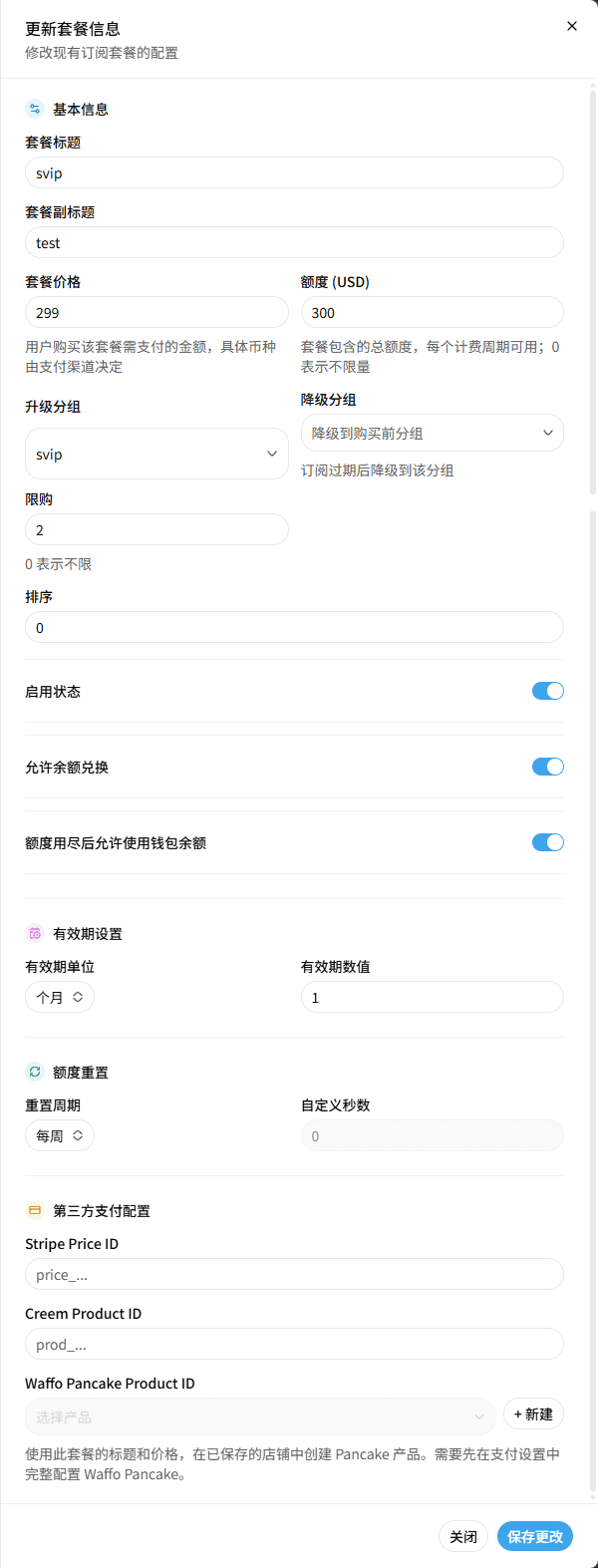
Steps
- Click the edit icon to the right of the target plan.
- Update the relevant fields and click “Save Changes”.
The edit drawer has the same settings as the creation drawer. See Create a Subscription Plan. Edits primarily affect future purchases and new subscriptions. For effects on existing subscriptions, see Effects of Plan Changes.
Caution
Pending orders store the plan ID and order amount. When the payment callback completes an order, the system reads the current plan settings and creates the entitlements. If you change the validity period, quota, groups, or “Allow Wallet Balance After Quota Is Exhausted” while a user is paying, the resulting entitlements may differ from what the user saw when placing the order. Before making high-risk changes, pause public purchases and resolve pending orders.
Enable and Disable Plans
- Subscription Management – Enable Plan
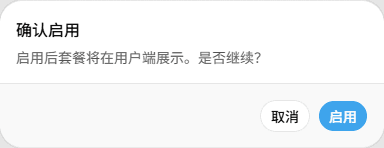
- Subscription Management – Disable Plan
Steps
- Click the status icon at the end of the plan row. Enabled plans show the “Disable” icon, and disabled plans show the “Enable” icon.
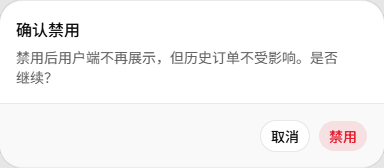
- In the “Confirm Enable” or “Confirm Disable” dialog, click “Enable” or “Disable”, respectively.
Tip
- The “Confirm Enable” dialog displays “Once enabled, the plan will be visible to users. Continue?”
- The “Confirm Disable” dialog displays “Once disabled, the plan will be hidden from users. Past orders are unaffected. Continue?”
- Enabling a plan makes it visible to users and available through the standard purchase flow again. Disabling a plan hides it from users and prevents new purchases through that flow.
For details on what happens to existing subscriptions when a plan is disabled, see Effects of Plan Changes.
Caution
Subscription Management currently has no option to delete a plan. Disabling a plan controls whether it is published and leaves existing entitlements in place. To end a user’s subscription immediately, void it under “User Management” → “Manage Subscriptions”. First check how group reversion and any other active subscriptions will affect the result.
Reset Subscription Quota
- Subscription Management – Reset Subscription Quota
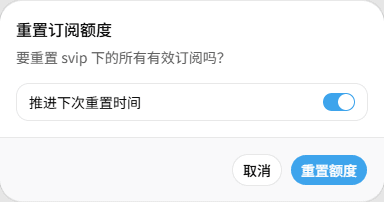
The reset action in the plan list applies to all active subscriptions under the selected plan.
Steps
- Click the reset icon to the right of the target plan.
- Choose whether to leave “Advance Next Reset Time” on. The toggle is on by default.
- Click “Reset Quota”.
Reset options
| Option | Behavior |
|---|---|
| “Advance Next Reset Time” on | Sets used quota to zero and recalculates the next reset time based on the plan’s current reset rules. |
| “Advance Next Reset Time” off | Sets used quota to zero and keeps the subscription’s existing next reset time. |
Caution
- This bulk action affects all users with an active subscription under the plan. Before proceeding, verify the target plan, reset cycle, and number of users affected. To reset quota for one user, go to “User Management” → “Manage Subscriptions”.
- The success message shows how many active subscriptions were reset.
- An audit log entry for each affected user reads “Administrator reset the quota for subscription plan … (ID: …)”. A separate entry is recorded for the administrator who performed the action. See Audit Log.
Rules and Behavior
This section covers how plan edits and disabling affect existing subscriptions, how group upgrades and reversion work, how payment methods and renewals work, and how the system handles expiration and quota resets.
Effects of Plan Changes
Plan edits primarily affect future purchases and new subscriptions. Existing subscriptions keep the entitlements recorded at creation.
Effects by field
| Plan Fields | Effect on Existing Subscriptions |
|---|---|
| Price, Allow Wallet Balance Purchases, Enabled, Sort Order, payment product IDs | Affect future plan display or purchases. Purchased subscriptions keep their existing entitlements. |
| Validity period, total quota, upgrade group, downgrade group, Allow Wallet Balance After Quota Is Exhausted | Saved in the entitlement snapshot when the subscription is purchased. Plan edits leave the corresponding values in existing subscriptions intact. |
| Quota reset cycle, custom reset seconds | The system reads the plan’s current rules during automatic resets or when an administrator chooses to advance the next reset time. Changes may therefore affect existing active subscriptions. |
| Purchase limit | Future purchases and subscriptions added by administrators count existing records again and apply the current limit. |
When a plan is disabled
- Subscriptions users have already purchased continue without cancellation or suspension.
- Existing subscription quotas and end times stay the same.
- Past orders remain valid.
- Existing pending orders can still complete after a successful payment callback.
- Administrators can still add the plan for a specific user in User Management.
Group Upgrades and Reversion
If the plan specifies an upgrade group, the system immediately attempts to move the user to that group when the subscription is created and records the user’s pre-purchase group in the subscription. When the subscription expires or an administrator voids or deletes it, the system applies the following rules in order.
- If the user has another active subscription with an upgrade group configured, the user stays in their current group.
- Otherwise, if the subscription specifies a downgrade group, the system moves the user directly to that group, even if someone manually changed the user’s group.
- If the subscription has no downgrade group, the system restores the pre-purchase group only if the user is still in this subscription’s upgrade group. If the user was already in the upgrade group at the time of purchase, there is no pre-purchase group on record and the user stays in their current group.
Caution
Before voiding or deleting a subscription, check the user’s current group and any other active subscriptions.
Payment Methods and Renewal Behavior
| Payment Method | Plan Requirements | How the Subscription Is Created |
|---|---|---|
| Wallet Balance | “Allow Wallet Balance Purchases” is enabled, and the user has sufficient balance. | The system multiplies the plan price by the quota per US dollar, rounds up, deducts that amount from the internal quota balance, and creates one subscription immediately. |
| EPay | EPay is enabled globally and has an available payment method. The plan price is at least 0.01. | A successful payment callback creates one subscription. No plan product ID is required. |
| Stripe | The plan has a Stripe Price ID, and the global Stripe and webhook configuration is complete. | Confirmation of the initial Checkout payment creates one local subscription. |
| Creem | The plan has a Creem Product ID, and the global Creem and callback configuration is complete. | A successful payment callback creates one subscription. |
| Waffo Pancake | The plan has its own Waffo Pancake Product ID, and the global credentials, store, and callback configuration are complete. | The user purchases a one-time product, and a successful callback creates one subscription. |
Tip
- On the Wallet page, users can choose “Subscription First”, “Wallet First”, “Subscription Only”, or “Wallet Only”.
- “Allow Wallet Balance After Quota Is Exhausted” applies only when the user selects “Subscription First”. If the subscription quota is insufficient, billing falls back to wallet balance only if that option is enabled on every active subscription the user has. The user’s billing preference still takes precedence.
- For information about purchases, subscription status, and billing preferences, see Wallet.
Automatic Maintenance
Background maintenance tasks handle subscription expiration and scheduled quota resets.
- The tasks run only on Master instances.
- The tasks run once after the service starts, then check approximately once per minute.
- Each batch processes up to 300 records.
- Expiration processing updates the subscription status and reverts the user’s group when the applicable conditions are met.
- Scheduled quota resets apply only to subscriptions that are still active.
Action Reference
Page Controls and Filters
| Action | Location | Description |
|---|---|---|
| “For Stripe and Creem, create a product on the third-party platform and enter its ID” | Top-right corner of the page | Informational text only. Hidden on narrow screens. |
| New Plan | Top-right corner of the page | Opens the “Create New Subscription Plan” drawer. See Create a Subscription Plan. |
| Column sorting | “ID”, “Plan”, “Price”, “Priority”, and “Status” column headers | Sorts in ascending or descending order. Refreshing restores the default order, from highest to lowest priority. |
| Pagination | Bottom of the list | Displays “Total: …”. “Rows per Page” offers 10, 20, 30, 40, 50, or 100 rows, with 20 as the default. Refreshing restores the default. |
Row Actions
| Action | Location | Description |
|---|---|---|
| Edit | Pencil icon in the “Actions” column | Shows “Edit” on hover and opens the “Update Plan Information” drawer when clicked. See Edit a Subscription Plan. |
| Reset Subscription Quota | Circular arrows icon in the “Actions” column | Shows “Reset Subscription Quota” on hover. See Reset Subscription Quota. |
| Enable, Disable | Power icon in the “Actions” column | Enabled plans show a red icon with the “Disable” tooltip. Disabled plans show a green icon with the “Enable” tooltip. This page has no option to delete a plan. See Enable and Disable Plans. |
Status Reference
Plan Status
The “Status” column in the plan list shows the following values.
| Status | Meaning | Notes |
|---|---|---|
| Enabled | The plan is visible to users and available for new purchases through the standard purchase flow. | Green. |
| Disabled | The plan is hidden from users and unavailable for new purchases through the standard purchase flow. | Gray. Existing subscriptions and pending orders are unaffected. See Effects of Plan Changes. |
User Subscription Status
User subscriptions are managed in the “User Subscription Management” drawer in User Management. The “Status” column shows the following statuses:
| Status | Meaning | Notes |
|---|---|---|
| Active | The subscription is within its validity period and can be used for quota deductions according to the billing preference. | Green. |
| Expired | The subscription has reached its end time. | Gray. The UI displays this status as soon as the subscription reaches its end time. A background maintenance task then updates the record and rolls back the user's group. See Automatic Maintenance. |
| Voided | An administrator ended the subscription early. The end time is set to the current time. | Gray. |
Note
“Void” preserves the subscription history. “Delete” permanently removes the subscription record with no recovery option. Any related payment orders, top-up transactions, usage logs, and task records are retained. For full instructions, see User Management.
Saving Changes and When They Take Effect
Changes submitted on this page are written to the database immediately. The sections below explain how the system reads plans and user subscriptions.
Plans
Order placement, payment callbacks, purchases using wallet balance, subscriptions added by administrators, quota resets, and scheduled subscription quota resets all read from the plan cache. With Redis enabled, all nodes share the cache and changes take effect as soon as they are saved. In multi-instance deployments without Redis, other nodes usually pick up changes within about 3 seconds, with a default maximum delay of about 5 minutes.
| Operation | How to Save | When It Takes Effect |
|---|---|---|
| Create a plan | Click “Save Changes” in the “Create Plan” drawer. The UI displays “Created successfully.” | The plan is saved immediately and appears in the user-facing plan list after it refreshes. |
| Edit the price, allow redemption using wallet balance, change the sort order, or edit the payment product ID | Click “Save Changes” in the edit drawer. The UI displays “Updated successfully.” | Changes apply only to how the plan is displayed and purchased going forward. Existing subscriptions retain their terms. |
| Edit the validity period, total quota, upgrade group, downgrade group, or whether users can pay from their wallet balance after using up their quota | Click “Save Changes” in the edit drawer. | The system saves a snapshot of these settings when a subscription is purchased. Existing subscriptions keep their saved settings. |
| Edit the quota reset cycle or custom reset interval in seconds | Click “Save Changes” in the edit drawer. | Existing active subscriptions use the new rules at the next automatic reset or when an administrator resets the quota with “Advance Next Reset Time” enabled. |
| Edit the purchase limit | Click “Save Changes” in the edit drawer. | The system recounts subscriptions against the new limit each time a user makes a purchase or an administrator adds a subscription. |
| Enable or disable a plan | Click the status icon and confirm in the “Confirm Enable” or “Confirm Disable” dialog. The UI displays “Enabled” or “Disabled.” | The plan immediately appears in or disappears from the user-facing plan list. Existing subscriptions, payment callbacks for pending orders, and subscriptions added by administrators are unaffected. |
| Reset subscription quotas | Click the reset icon, then click “Reset Quota” in the confirmation dialog. The UI displays “Reset quota for … active subscriptions.” | The reset runs immediately and applies only to active subscriptions under this plan that have yet to reach their end time. The system records one audit log entry for each affected user and one for the administrator who performed the reset. |
Environment Variables
SUBSCRIPTION_PLAN_CACHE_TTLsets the cache lifetime in seconds. It must be greater than 0 and defaults to 300.- Restart the system after changing this environment variable to apply the new value.
Subscriptions and Expiration
User subscription changes are written directly to the database and take effect immediately on all nodes.
| Operation | How to Save | When It Takes Effect |
|---|---|---|
| Add, reset, void, or delete a user subscription | Submit each operation individually under “User Management” → “Manage Subscriptions.” | Changes take effect immediately. The user's group changes accordingly, and existing user sessions stay active. See User Management. |
| Subscription expiration or scheduled reset | No action required. | Subscription quota becomes unavailable as soon as the subscription reaches its end time. A background task on the Master instance runs about once a minute to mark subscriptions as “Expired” and roll back user groups. See Automatic Maintenance. |
Important Notes
- Resetting subscription quotas affects all active subscriptions under the plan. To reset a single user's quota, go to “User Management” → “Manage Subscriptions.” See Reset Subscription Quotas.
- Voiding or deleting a subscription triggers a group rollback. Check the user's current group and any other active subscriptions before proceeding. See Group Upgrades and Rollbacks.
- Editing a plan affects pending orders. The payment callback reads the plan again when it completes the order. If you change the validity period, quota, or group while payment is pending, the user may receive different benefits from those available when they placed the order. See Edit a Subscription Plan.
- Disabling a plan preserves existing subscription benefits. The page has no option to delete a plan. See Enable or Disable a Plan.
- Payment availability depends on more than saving the plan. Third-party payments also depend on the product ID, global payment gateway configuration, and payment callbacks. See Create a Subscription Plan and Payment Methods and Renewal Limitations.
Frequently Asked Questions
Related Documentation
- User Management — Add, reset, void, or delete subscriptions for a specific user.
- Wallet — Purchase plans, view subscriptions, and choose a billing preference.
- Billing & Payment Configuration — Configure quota units, currency display, groups, payment compliance, and payment gateways.
How is this guide?
Last updated on